Your activity
The page heading is "Your activity", with the subtitle "Everything you have done in DocuFlow, newest first. Only you and your administrators can see this."
Events are grouped under day headings — Today, Yesterday, or the full date for anything older — newest first within each group. Each row shows a plain sentence describing what happened, plus how long ago it happened (for example "Just now", "5 minutes ago", "2 days ago"); hovering the time shows the exact moment. If your device's clock looked wrong when the event happened, a row also shows "Time reported by device".
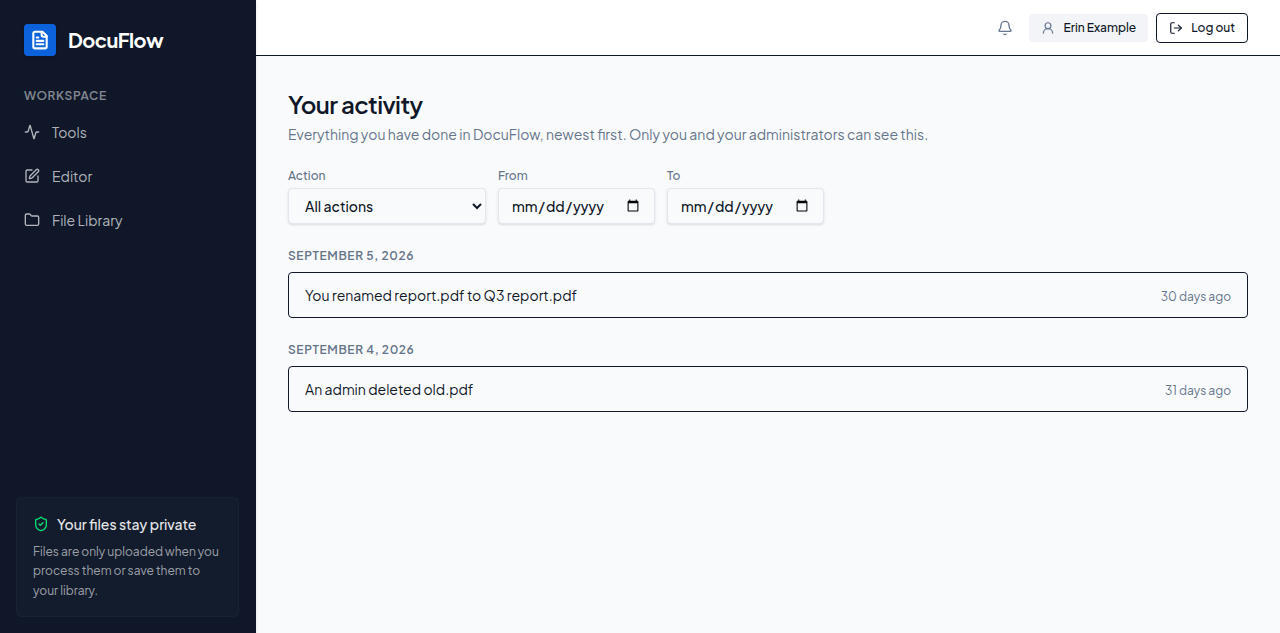 Figure: Your activity, reached from the account menu.
To narrow the list:
- Choose an Action from the dropdown to see only one kind of event, and/or set From / To dates.
- A Clear filters button appears once any filter is set — select it to see everything again.
What you'll see when it's done: matching events, grouped by day as above.
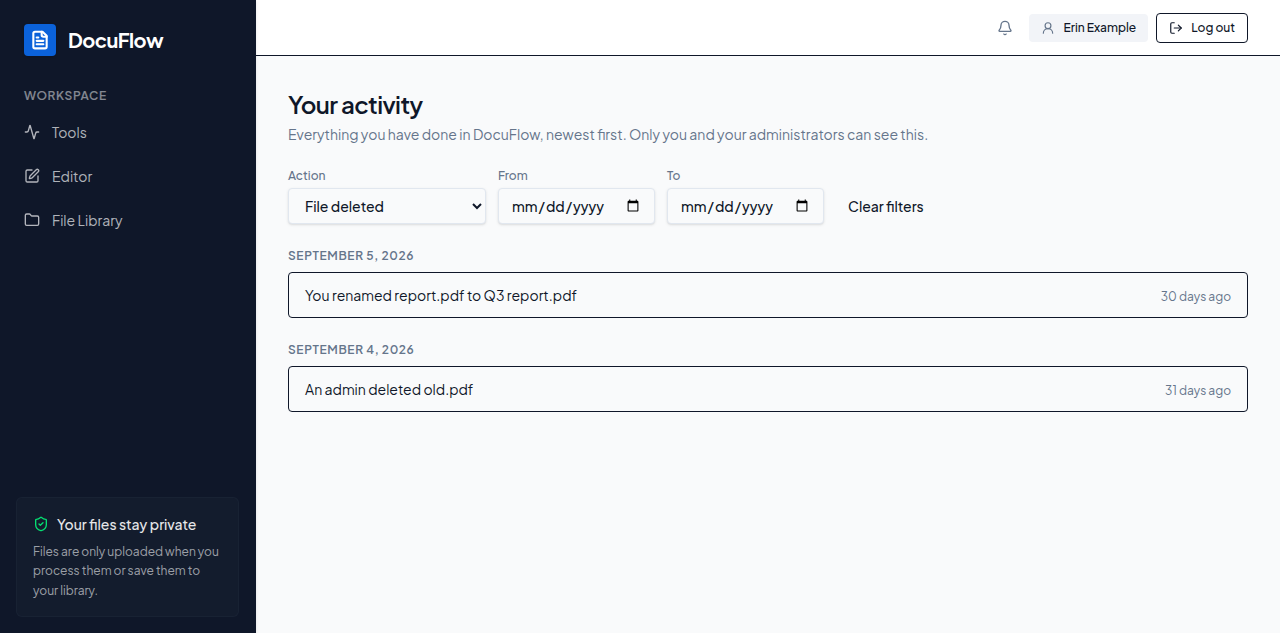 Figure: activity narrowed to one action, with the Clear filters button available.
The Action dropdown starts on "All actions"; the specific kinds you can filter to are:
| Action |
|---|
| File uploaded |
| File renamed |
| Tags changed |
| File deleted |
| Deleted on device |
| Saved to device |
| Sharing changed |
| Link created |
| Link revoked |
| Link download |
| Files moved |
| Folder renamed or moved |
| Folder deleted |
| Job run |
| Settings updated |
| Signed in |
| First sign-in |
| Signed out |
Only these appear on your own activity page — kinds of events that only administrators can cause (managing other people's accounts, changing organisation-wide settings, and so on) are left off this list, since they could never be about something you did.
- While loading: "Loading your activity…"
- If it fails to load: "Your activity could not be loaded. Try again in a moment."
- With no events at all: "Nothing here yet", with "Nothing here yet. Actions you take on your files will appear here."
- With filters that match nothing: "No activity matches these filters", with "Clear the filters to see everything you have done."
Reaching the end of the loaded list shows a Load more button (it also loads automatically as you scroll). Select Load more if scrolling doesn't trigger it on its own — both do exactly the same thing, fetching the next page of your older history.