Organise PDFs
These tools organise the pages inside a PDF — combine files, split them apart, fix their order, cut out or add pages, shrink the file, or lay it out for printing. Anyone who has a PDF to tidy up before sharing it uses them.
Before you start
- You need a PDF file saved somewhere you can pick it from — your device, or your library.
- On the web app you must be signed in with your organisation's account. The desktop app works with these tools before you sign in.
- Merge PDF, Split PDF, Rotate pages, Rearrange pages, Delete pages, Extract pages, Add blank pages, N-up layout and Booklet open inside the full editor. Compress PDF and Add page numbers open their own page instead. All eleven are reached from the tools list — search for the tool by name, or open the Organize tab.
- Dropping a PDF straight onto the home page opens the plain editor, without any of these tools' presets switched on — to get a tool's guided steps, open it from the tools list first.
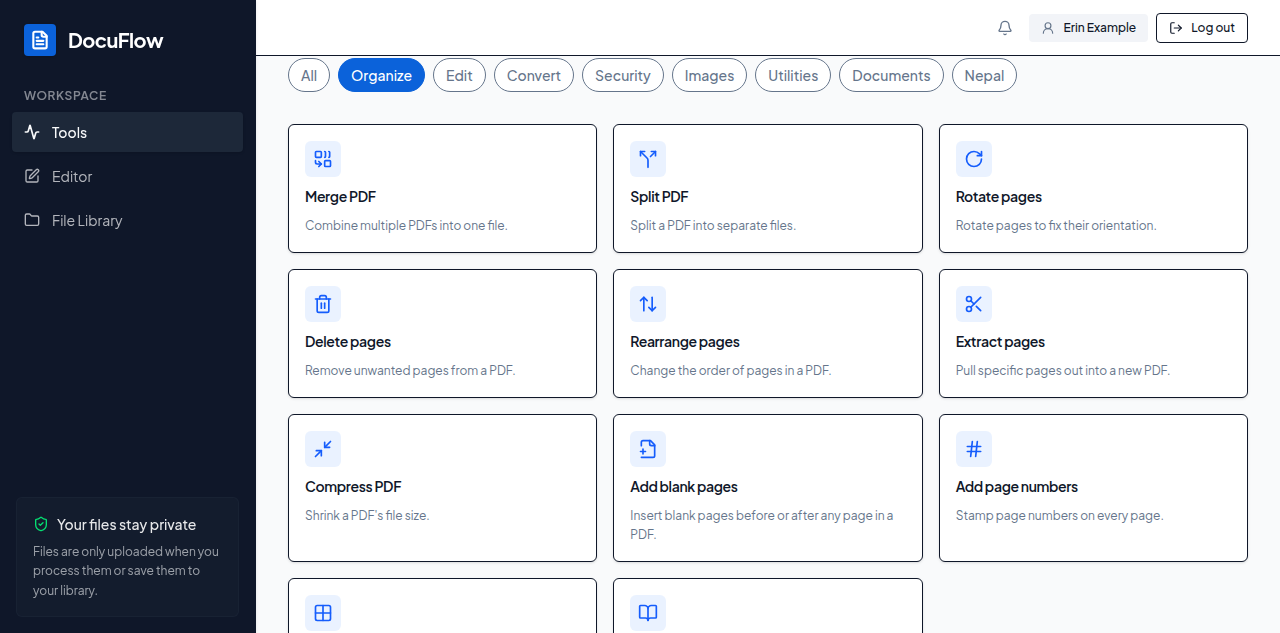 Figure: the Organize tab — all eleven page-organising tools in one place.
Tips
- Every one of these tools shows its effect on the page list or canvas before you export — nothing is guessed or hidden until the file downloads.
- Undo, in the editor's top bar, reverses the last page change — a rotate, delete, insert or reorder — so it's safe to try something and back out.
- Drop a file DocuFlow doesn't expect anywhere in these tools, and it says: "DocuFlow needs a PDF file here."
- Compress PDF and Add page numbers open their own dedicated page from the tools list; the other nine tools here open inside the full editor, where you can turn on more than one change before you export.
- With more than one document open in the editor, tick Export all documents in the Export dialog to run the enabled changes on every open document at once.
- On the desktop app, Compress PDF works without an internet connection; Add page numbers does not.