People
Manages who has an account and who else is an administrator. Accounts themselves live in your organisation's login system; "Administrator" here means membership of the engine's admin group.
If people management isn't connected on this server, the whole screen is read-only and shows: "People management isn't set up on this server yet. Ask whoever manages your DocuFlow server to connect it to your login system."
Find a person
To find someone:
- Type into Find a person (placeholder "Name or email").
- Type at least 2 characters — fewer shows "Type at least 2 characters."
What you'll see when it's done: a list of matching people.
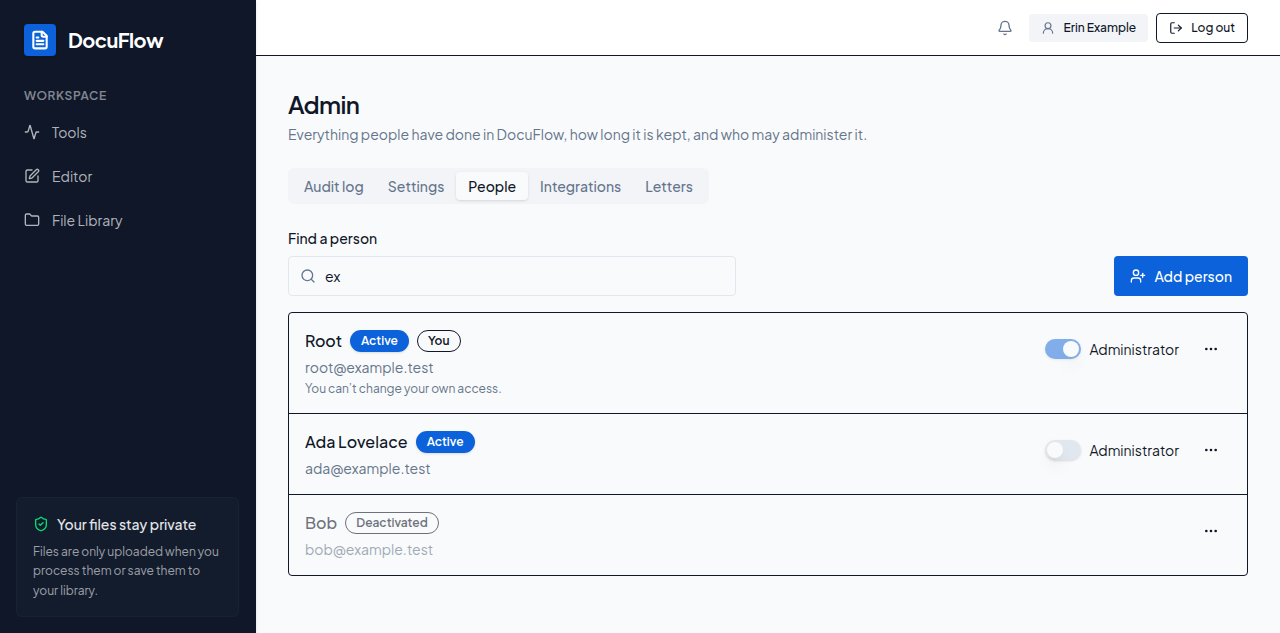 Figure: matching people, with their Active/Deactivated status and Administrator switch.
No matches shows Nobody matches "<query>". Check the spelling, or add them.
Add a person
Creates an account and emails the person a link to set their own password.
To add a person:
- Select Add person. The dialog explains: "They'll get an email with a link to set their password."
- Fill in Name and Email.
- Tick Administrator if they should be able to open Admin and manage people — the checkbox explains: "Can open Admin and manage people."
- Select Create account.
What you'll see when it's done: Account created. We emailed a set-password link to <email>.
- Name left blank: "Enter the person's name."
- Not a valid email: "Enter a valid email address."
- The invitation email couldn't be sent: "Account created, but the email couldn't be sent." — a Copy set-password link button appears so you can send it yourself.
- Making them an administrator failed even though the account was created:
Account created, but making them an administrator failed: <reason> Use the switch to retry.
Set a password, or send a reset link
Gives a person a new password directly, or sends them a link to set their own.
To send a password reset email:
- Open a person's row menu (the "More actions" button at the end of their row).
- Select Send password reset email.
What you'll see when it's done: Reset email sent to <email>
"The email couldn't be sent." — a Copy set-password link button appears as a fallback.
To set a password yourself:
- Open the row menu and select Set a password.
- Type New password and Confirm password — at least 8 characters ("At least 8 characters. Your login system may ask for more.").
- Select Set password.
What you'll see when it's done: Password set. Tell <name> their new password and suggest they change it from their profile.
- Fewer than 8 characters: "Use at least 8 characters."
- The two boxes don't match: "The two passwords don't match."
To copy a one-time set-password link:
- Select Copy set-password link wherever it's offered.
What you'll see when it's done: "Link copied. Send it to the person." — the note under it reminds you: "This link works once and expires in 24 hours."
Deactivate or reactivate
Stops (or restores) a person's ability to sign in, without touching their files.
To deactivate someone:
- Open their row menu and select Deactivate.
- Confirm — the dialog reads
Deactivate <name>?/ "They can't sign in until reactivated. Their files and shares are kept."
What you'll see when it's done: the person's row shows "Deactivated".
To reactivate them: select Reactivate on their row — no confirmation is asked.
This option, like several others, is not available on your own row.
The Administrator switch
Grants or removes another person's access to the admin area.
To make someone an administrator: turn on the Administrator switch on their row — it takes effect immediately, no confirmation needed.
To remove someone's administrator access: turn the switch off. Confirm — the dialog reads <name> will no longer be able to open Admin. / "They keep their account and files." — then select Remove administrator.
You can't change your own access — your own row shows "You can't change your own access." instead of a switch you can use.
Delete a person
Permanently removes someone's account from the login system.
To delete someone:
- Open their row menu and select Delete.
- A confirmation dialog appears:
Delete <name>?/ "This removes their account from the login system for good. They will not be able to sign in, and this cannot be undone. Type their email address below to confirm."
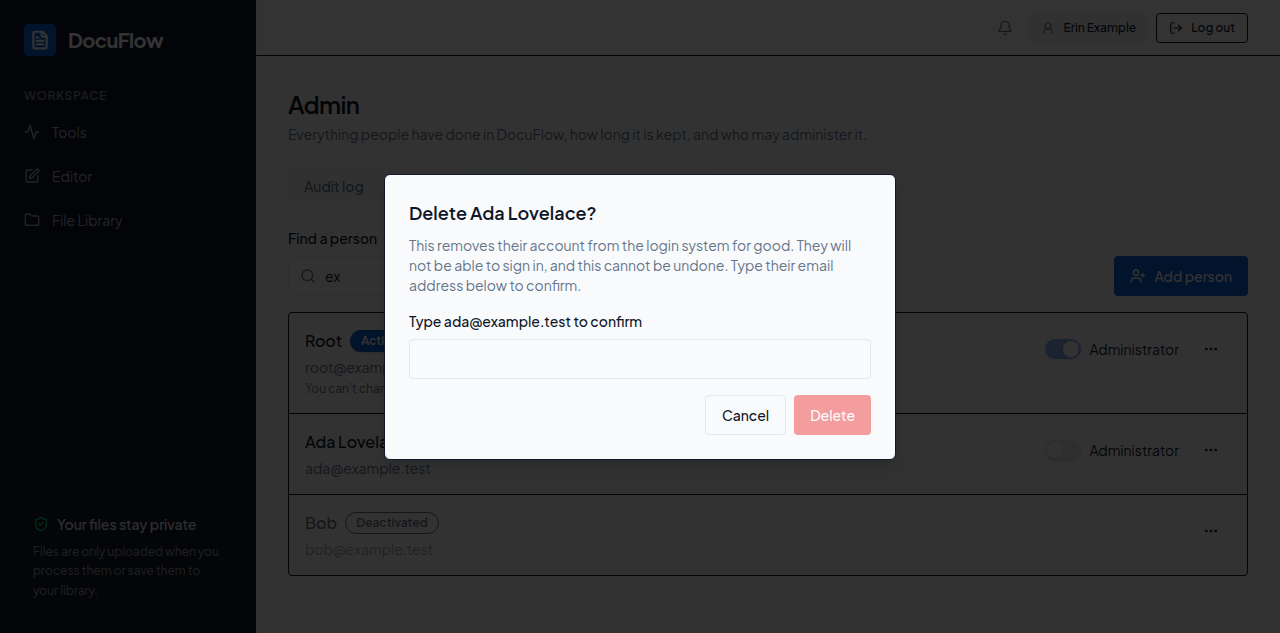 Figure: the delete confirmation — the Delete button stays disabled until the email matches.
- Type their email exactly, under the prompt
Type <email> to confirm. The Delete button only enables once it matches. - Select Delete.
If they still have documents, the dialog grows a second step instead of failing: "<name> still has <number> document(s)." Choose one:
- Keep them in the Archive (chosen by default) — "Anyone
<name>shared them with keeps access. You'll find them under Archive in Files." The button becomes Archive and delete. - Move them to someone else first — "Choose who they go to. Shares stay as they are." Search for the new owner under Search for a person (the person being deleted is never offered as their own target). The button becomes Move and delete, and stays disabled until you've picked someone.
Select the button again to confirm your choice. While the request is running the button is disabled and reads Deleting…, Archiving… or Moving…, so it can't be clicked twice.
What you'll see when it's done: the person disappears from the list.
- The person still has documents and you haven't chosen yet: the dialog grows the second step described above; nothing else changes.
- Moving their documents couldn't be completed: the reason appears on their row, prefixed "Couldn't move their files: " followed by the server's own explanation — for example, if the person you picked turns out not to be in DocuFlow any more by the time you confirm.
- Deleting accounts isn't available on this server at all: "Deleting accounts isn't available on this server yet."
This option, like Deactivate, is not available on your own row.