Tools
The Tools page is what opens right after you sign in (or, on desktop, right when you open the app). Its heading is "Tools", with the line "Your private utility desk for everyday document work."
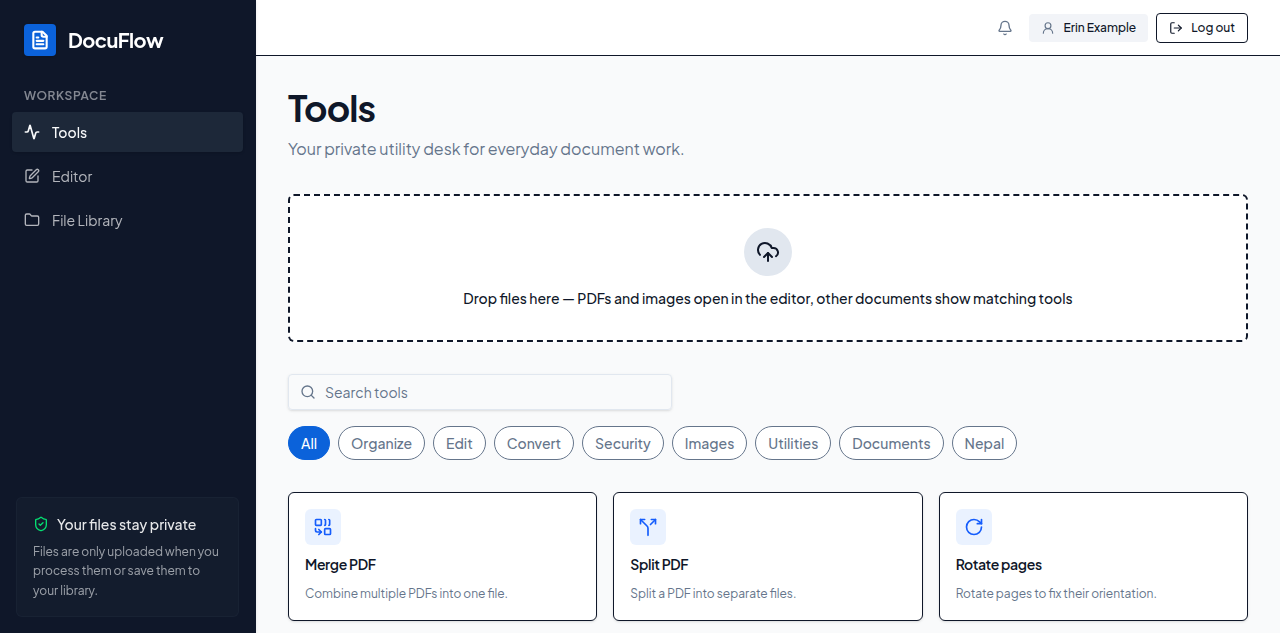 Figure: the Tools page — every tool DocuFlow offers, in one searchable catalogue.
To start work on a file:
- Drop your file onto the drop zone in the middle of the page — it reads "Drop files here — PDFs and images open in the editor, other documents show matching tools."
- If your file is a PDF or an image the editor can open, you go straight into the editor, ready to work on it — no extra step.
- For any other kind of file DocuFlow recognises (a Word document, an HTML page, and so on), a panel appears headed with your file's name and the line Tools that can take this drop:, with one button per tool that can handle it. Select the one you want.
What you'll see when it's done: the tool you chose opens with your file already loaded — you do not have to upload it again or hunt for an "open file" option inside the tool. This is what "the tool opens ready for your file" means throughout DocuFlow: picking a tool from a drop, or from the matching-tools panel, never leaves you back at an empty screen with your file to find again.
- If none of DocuFlow's tools can take your file at all, you'll see a toast: "DocuFlow has no tool for that file type."
- If several files were dropped together and no single tool can take all of them as one job, the panel says "No single tool takes all of these files together — try one type at a time."
- You can dismiss the matching-tools panel at any time with its Dismiss button, without picking a tool.
Finding a tool without a file
You don't have to start from a file. The Tools page has a search box (placeholder "Search tools") and a row of category tabs above the tool grid:
| Tab |
|---|
| All |
| Organize |
| Edit |
| Convert |
| Security |
| Images |
| Utilities |
| Documents |
| Nepal |
Tools you've used recently appear as a row of small "Pick up where you left off" pills near the top, so the tool you reach for most often is usually only a glance away.
To find a tool:
- Type into the search box, or select a category tab.
- Select the tool's card to open it. It is then ready for you to add or drop your file inside it.
Whichever way you arrive at a tool — a drop, a search, or a category tab — it opens ready for your file; you never have to look for a separate "open file" step once you're inside.
What you'll see when it's done: the tool's own page opens, with its file-picker or drop area waiting for your file (or, for tools that already had your file from a drop, ready to work on it immediately).
If nothing matches what you typed, the page shows "No tools match "<what you typed>"" — try a shorter or different word, or clear the search box and browse the category tabs instead.
You don't need to remember a tool's exact name to find it — a close guess, or the plain-language task it does ("compress", "watermark", "sign"), is usually enough. The All tab shows every tool at once; reach for the other category tabs, or the search box, once you know roughly what kind of task you're doing.