Sign PDF
Stamp a signature image onto selected pages.
To stamp your signature onto a PDF:
- Open Sign PDF from the tools list.
- Drop your PDF.
- Attach your Signature image ("A PNG with a transparent background looks best.").
- Type which pages to sign into Pages to sign (placeholder "Last page").
- Under More options: Distance from left edge, Distance from bottom edge, Signature width ("As a share of the page width."), Opacity.
- Click Sign PDF.
What you'll see when it's done: the signature is drawn over the page exactly where and how big it will be, live as you change the position or size. Once run, each file's row offers Download, Save to library, Open in editor, and Start over.
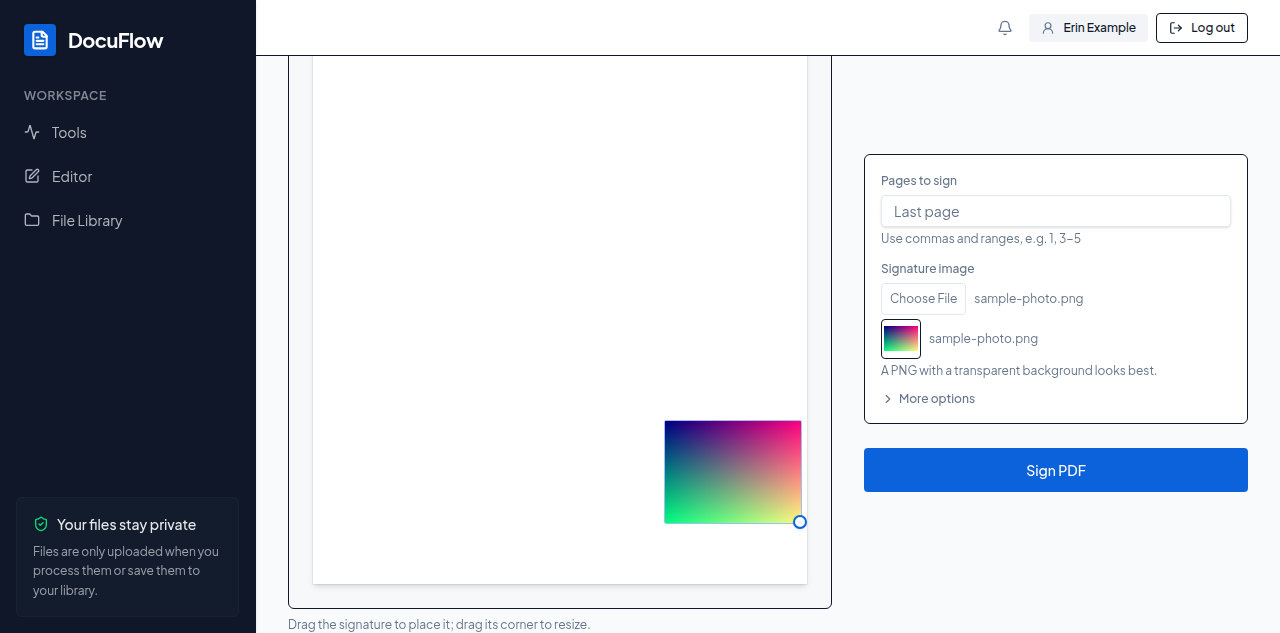 Figure: the signature shown on the page before Sign PDF is run.
If something goes wrong
"Choose a signature image" if none is attached. Sign PDF needs an internet connection; on the desktop app, offline, the button is disabled with "Needs an internet connection to sign PDFs."