The editor
Every PDF you open for editing — by dropping it on the home page, or through one of these tools — lands in the same editor, with the page you're working on shown large in the middle and a panel called Settings beside it.
The page canvas
Below the page, a toolbar offers the page actions: Rotate left, Rotate right, Delete, Black out, Extract to new document, Split PDF, Edit as image, and Insert blank page (with Before / After). Black out is the one action that isn't a one-off: clicking it turns on the drawing tool (see Black out parts of a PDF) — a strip appears under the toolbar with a live count, Clear all and Done. Round arrow buttons at the left and right edges of the canvas step to the previous/next page (dimmed once you're at the first or last page), with a "current / total" label above the page telling you where you are.
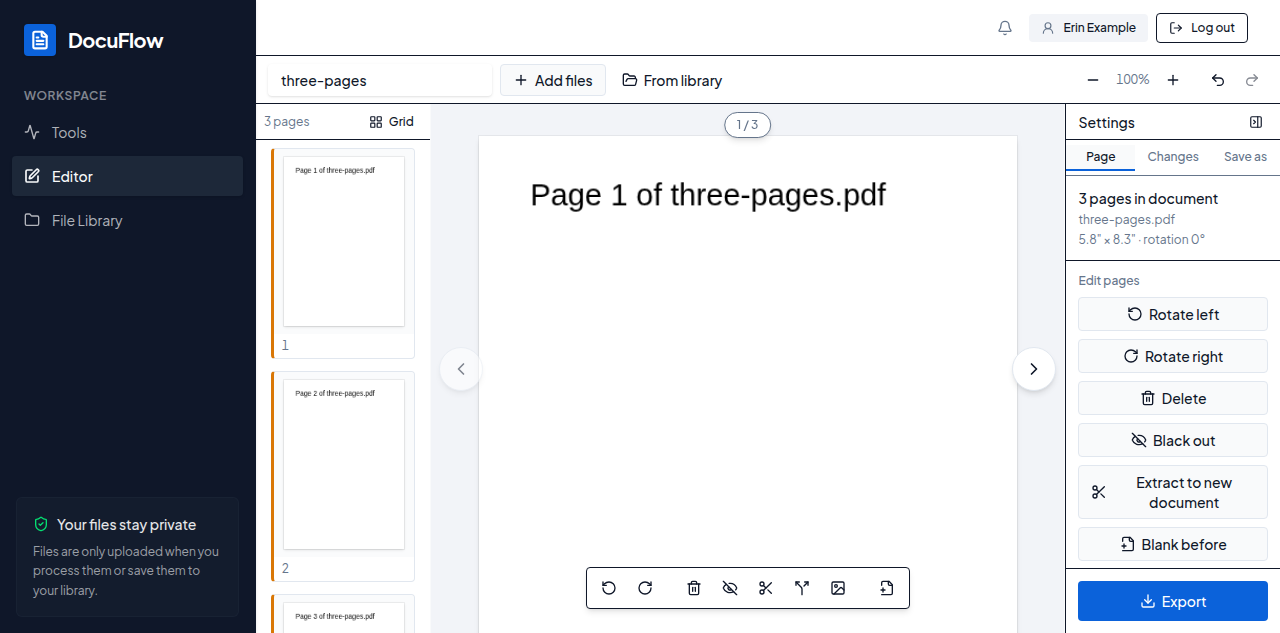 Figure: the page canvas and its toolbar of page actions.
The Settings panel
Settings has three tabs:
-
Page — a summary of the pages you've selected, plus the same "Edit pages" actions as the canvas toolbar, in the same order: Rotate left, Rotate right, Delete, Black out, Extract to new document, Blank before, Blank after, and Split into separate PDFs.
-
Changes — an Add a change button opens a menu of every change you can make; picking one adds a card for it, with its title and its options right there — nothing to expand, nothing to turn on separately. Each card has a small × to remove it. (Black out isn't in this menu — it's the toolbar button above, since it's drawn on the page rather than configured in a form.) Whichever ones you add always run in this fixed order, no matter which order you added them in:
- Page layout — "Print several pages on one sheet, or as a folded booklet."
- Page numbers — "Add a number to every page."
- Watermark — "Stamp text or an image across every page."
- Sign — "Place your signature image on a page."
- Make text searchable (OCR) — "Recognise the text in scanned pages so it can be searched and copied."
- Flatten — "Lock form fields and comments into the page so they can't be changed."
- Remove hidden data — "Strip details, attachments, scripts or links you may not want to share."
- Document details — "Set the title, author and keywords saved inside the file."
- Compress — "Make the file smaller."
- Password — "Require a password to open the PDF."
Black out, when turned on from the toolbar, still runs first, ahead of all of these. With nothing added yet, the tab reads "Nothing changes yet — add a change above to see it on the page."
-
Save as — choose what the file comes out as: PDF, Images or Text.
Document tabs
With two or more documents open, a row of tabs sits under the top bar, one per document, each showing its page count as a pill ("1 page" / "<n> pages"). Left, Right, Home and End switch between them.
The Export dialog
Click Export to open it. The primary button is named after the work: with exactly one change turned on it reads "<that change> & download" (e.g. Black out & download, Add watermark & download, Compress & download, Add page numbers & download, Sign & download, Make searchable & download, Flatten & download, Clean & download, Set details & download, Protect & download); with none turned on it reads Download PDF; with several it reads Export PDF (each reads "save" instead of "download" on the desktop app). A checkbox offers Also save to my library; with two or more documents open, a second checkbox offers Export all documents.
What Export checks before it lets you run it — a problem opens the Settings panel to the field itself, so you rarely see these as a blocked dialog, but they're the exact sentences:
- "Enter a password (at least 4 characters) to protect your PDF"
- "Add watermark text or choose an image"
- "Choose a signature image"
- "Fill in at least one document detail, such as the title"
- "Draw at least one area to black out"
- "The 'to' page must be a whole number of 1 or more"
- "The 'to' page can't come before the 'from' page"
- "This PDF has only 1 page" (or "This PDF has
<n>pages — choose a page from 1 to<n>")
While it runs, one plain sentence shows at a time, over a progress bar with no percentage: "Preparing your PDF…", "Blacking out areas…", "Arranging pages…", "Adding page numbers…", "Adding the watermark…", "Signing…", "Making text searchable…", "Flattening…", "Removing hidden data…", "Setting document details…", "Compressing…", "Protecting…", "Converting…", "Finishing…"
When it's done, each document gets a row with its name and size (before → after, when Compress, Flatten or Sanitize ran), a Download button, Download all (.zip) with more than one document, Save to library (unless the checkbox already did it), and Start over. A failed row offers Try again, and — depending on what failed — Export without this step or Download it anyway (Save it anyway on desktop).