Members
On SuaveDocs cloud, owners and administrators manage the workspace's people under Administration → Members: invite people, choose their role and remove people who have left. People is for your organisation's own SuaveDocs server, so you will see one or the other, never both.
The list shows everyone in the workspace, owners first, with the date they joined and when they were last seen. Your own row is marked "You". A member whose access is paused is marked "Suspended". Under the search box, a line such as "7 of 10 people" tells you how many people your plan includes; it isn't shown when the number of people is unlimited. The Free plan includes 3 people, so a workspace with two members shows "2 of 3 people".
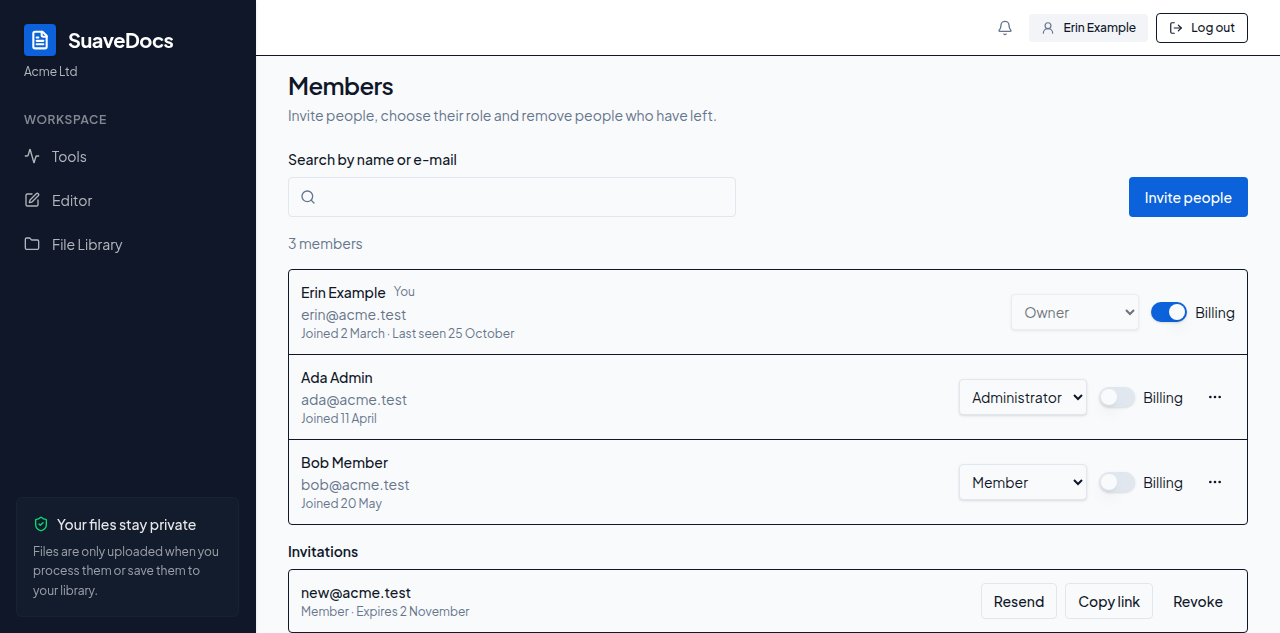 Figure: Administration › Members, showing the people in the workspace and, under Invitations, one waiting invitation with Resend, Copy link and Revoke.
Find someone
Type into Search by name or e-mail. The list narrows a moment after you stop typing, and the line above it says how many people match, for example "3 members". If nobody matches, you'll see "Nobody matches that search." When there are more people than fit on the page, select Show more to add the next group to the list.
Invite people
Owners and administrators can invite people. Select Invite people next to the search box. In the window that opens, type or paste one or more e-mail addresses into E-mail addresses, one per line or separated by commas, choose their role (Member or Administrator), add a Message (optional) of up to 500 characters if you like, and select Send invitations. If sending to some addresses went wrong, select Send invitations again: only the addresses that failed are sent again, so nobody is invited twice. Otherwise the button stays unavailable until you change the addresses. Under the form SuaveDocs reports each address on its own line: "Invitation sent", or, if it couldn't send an e-mail, a Copy link button and the note "Copy the link and send it yourself." An address that doesn't look right says "This doesn't look like an e-mail address." and nothing is sent to it. If your plan has no room for more people, SuaveDocs tells you so under that address. Once you close the window, everyone you invited appears under Invitations.
Invitations
Invitations that haven't been answered yet are listed under Invitations, below the members, each with the person's address, their role and a line such as Expires 2 November. The group is not shown when nobody is waiting.
- Resend sends the invitation by e-mail again. SuaveDocs confirms with "Sent again."
- Copy link puts a new invitation link on your clipboard, to send in your own message. SuaveDocs says "Link copied. The previous link no longer works." Anyone holding the earlier link must use the new one. If your browser won't copy it, SuaveDocs says so and shows the link under the invitation, so you can select and copy it by hand.
- Revoke withdraws the invitation at once; it disappears from the list. The person can no longer join with it, and you can invite them again later.
If you send or resend too many invitations in a short time, SuaveDocs says so under that invitation and tells you when to try again. People who may not invite others see the list without these buttons.
Change someone's role
Next to each person is their role: Owner, Administrator or Member. If you can change roles, it is a drop-down list: choose a different role and the change is saved at once. Owner is offered only to owners. A workspace always needs at least one owner, so the last owner's role can't be changed; SuaveDocs tells you so under that person's row. Whenever SuaveDocs refuses a role you choose for someone, it says why under that person's row, for example "A workspace needs at least one owner." or "Ask another administrator to change your role." Your own role is greyed out: to change it, ask another administrator. People who can't change roles see each role as plain text.
Billing
If you manage the plan, each row also has a Billing switch. Switch it on for someone who should be able to manage the workspace's plan, such as a colleague in finance; switch it off to take that right away. The change is saved at once. The switch on your own row works the same way.
Suspend or reactivate
Next to each person (except you) is a menu button. Open it and select Suspend to pause someone's access without taking them out of the workspace: they stay in the list, marked "Suspended", and can't open the workspace until you bring them back. A suspended person's row offers Reactivate instead; select it to give them their access back. If your plan has no room for them, SuaveDocs says so under their row.
Remove someone
- Open the menu next to the person and select Remove.
- Type their e-mail address to confirm. SuaveDocs tells you which address to type, and it doesn't mind capital letters.
- Select Remove from workspace.
If the person still owns documents, SuaveDocs asks what should happen to them, for example "Ada Admin owns 3 documents. What should happen to them?" Choose Archive them to keep the documents in the Archive, where anyone they shared them with keeps access, or Give them to someone else and search for the person who should get them. That person has to be an active member of the workspace; if they aren't, SuaveDocs says "That person isn't an active member of this workspace. Pick someone from the members list." Then select Remove from workspace again. A workspace always needs at least one owner, so the last owner can't be removed; SuaveDocs tells you so in the dialog.