Your workspaces
On SuaveDocs cloud, a team's pages have addresses that start with /w/<web address>/, so a link always opens the right workspace: a link someone sends you to Acme's library opens Acme's library, and if you are already working in a team, a plain SuaveDocs link you paste gains that team's start (/w/acme/…) so the next link you copy is just as exact. Your personal space has no such start. If a link points to a workspace you are not in, SuaveDocs says "You don't have access to this workspace." and offers Go to my space, which opens your personal workspace.
A workspace is a separate space with its own files and its own people. On SuaveDocs cloud you have your own Personal space, and you may also belong to a Team or Company workspace you were invited to. The sidebar and the account menu always say which one you are in.
To switch:
- Open the account menu (your name, top right) and select Switch workspace. A panel headed Your workspaces opens (from the bottom of the screen on a phone).
- Pick a row. A tick marks the workspace you are in now. SuaveDocs opens the one you picked at its start page, and the address changes as described above.
Your Personal space is listed first, then the others by name. Some rows cannot be opened. A row marked "Suspended" is paused and cannot be opened. Two other kinds of row cannot be opened yet. A row that reads "Deleting on
The same panel has Create a team, which starts a new team workspace, and, if you administer the workspace you are in, Manage workspace, which opens its Administration page.
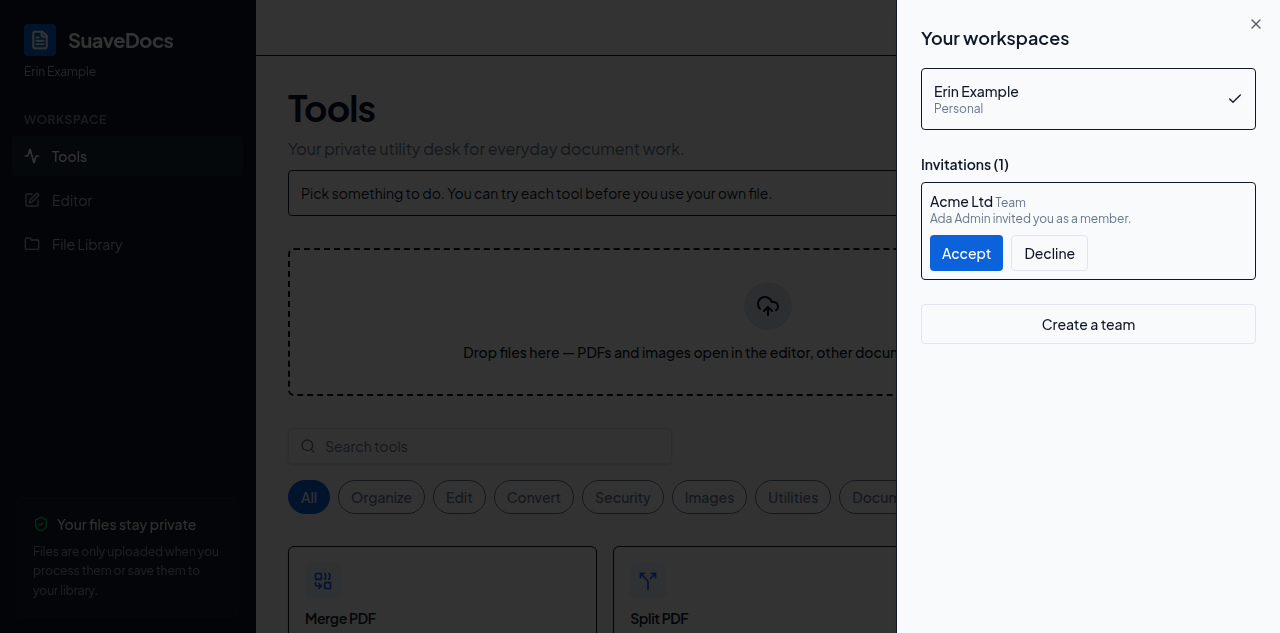 Figure: The Your workspaces panel, showing the Personal space, one invitation to Acme Ltd with Accept and Decline, and Create a team.