Signing as someone outside your organisation
Someone outside your organisation gets an e-mail with a link. They don't need an account.
To sign:
- Open the link. The page says "Enter the code we sent to r…@example.org", and a six-digit code arrives at that address. Type it under Code and select Continue. The code works for 10 minutes; Send a new code comes back after 60 seconds. Once the code is accepted, the same link works for the next 24 hours in that browser without a new code — you can reload the page, close it and come back to it. After that (or in another browser), the page asks for a code again and sends a new one. If the page goes back to the code screen while you are signing, it says "Enter the code we sent you first." — type the new code that was sent.
- The document shows your boxes, and dashed outlines with a name show where the other people sign; if your boxes aren't on the first page, the page opens on the first page that has one and says where they are ("Your boxes are on pages 2 and 3."). Check Your name — how your name appears on the document; it is empty when the sender didn't give your name, so type it — and select Make your signature: draw it, or type it and pick a style, then select Use this signature. It is used for this document only, and SuaveDocs does not keep it. If there is an initials box, select Make your initials the same way. The page shows exactly what will be added: your signature with "Signed by
<your name>" and the date under it, and the date and your name in their boxes. - Read the line under it: "By signing you agree to use an electronic signature and that this record is kept by
<workspace>." - Select Sign document.
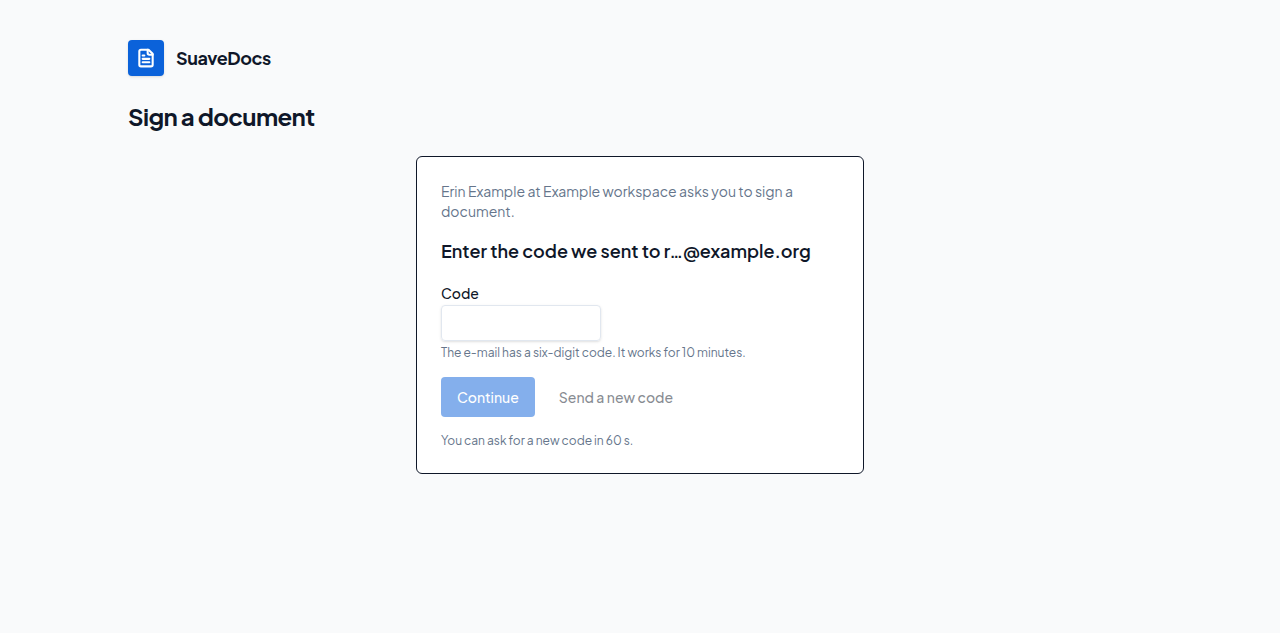 Figure: proving the e-mail address with the code.
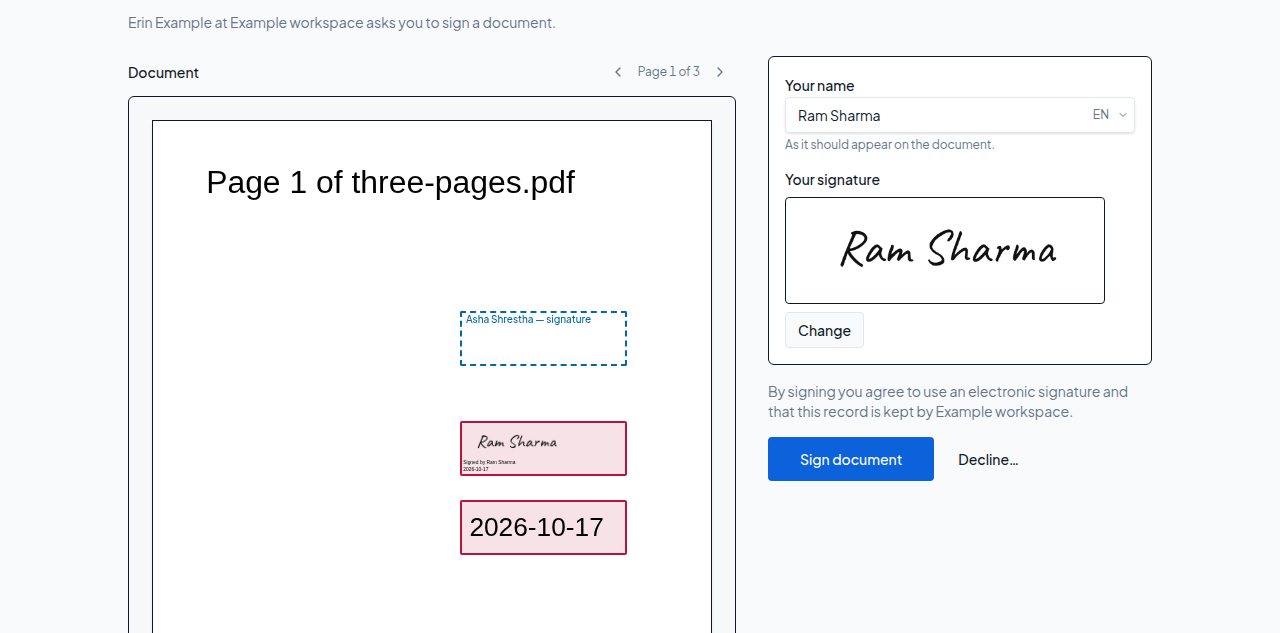 Figure: signing without an account.
What you'll see when it's done: "Thank you — your signature is on <title>. You'll get the completed document by e-mail when everyone has signed." Under it, a line says which certificate your signature was made with — "Signed with: SuaveDocs certificate". The completed e-mail links to a page with Download signed document and Download completion certificate, for 30 days.
If something goes wrong
- "That code isn't right. Check the e-mail and try again." with how many tries are left.
- "That code has expired. Ask for a new one." or "Too many wrong codes. Ask for a new one." (after five wrong tries on one code) — select Send a new code.
- "Too many wrong codes. Ask the sender for a new link." — after 25 wrong codes the page stops asking for a code and shows only this sentence; contact the person who sent you the document.
- "E-mail is switched off for this workspace right now. Ask the person who sent you this document." — the code can't be sent until the workspace's e-mail is switched back on.
- "You've asked for several codes. Wait a few minutes and try again."
- "Type your name." — fill in Your name before Sign document.
- "
<sender>cancelled this request. Nothing more to do." - "This request expired. Ask
<sender>to send a new one." - "This request was declined, so it's closed."
- "Everyone has signed. Check your e-mail for the completed document."
- "This link doesn't work any more. Ask the person who sent it for a new one."