Signing a document you were sent
When it is your turn, the bell says "<sender> asks you to sign <title>." and you get an e-mail. Select either, or the row under Awaiting me.
To sign it:
- Your boxes are marked on the page; the dashed outlines, each labelled with a name ("Ram Sharma — signature"), show where the other people sign. If your boxes aren't on the first page, the page opens on the first page that has one and says where they are — for example "Your boxes are on pages 3 and 5."; the arrows above the page go to the others. Under Your signature, choose one of your saved signatures or select Make a signature (as in Sign PDF). If the document has an initials box, choose or make your initials under Your initials (Make your initials). "The date and your name go into their boxes by themselves."
- Check the page: it shows exactly what will be added — in a signature box your signature with "Signed by
<your name>" and the date under it, in an initials box your initials, and the date and your name in their boxes, each fitted whole into its box. - If you added your own certificate in Settings — or, as an administrator, your organisation has one — More options appears under your signature; open it to choose under Certificate. SuaveDocs certificate is the default (see Your own signing certificate).
- Select Sign document. "Signing…" shows while SuaveDocs signs. If you reload the page or come back to it meanwhile, it still shows "Signing…" and carries on until your signature is on; if that takes unusually long it says "This is taking longer than usual. Reload the page to check."
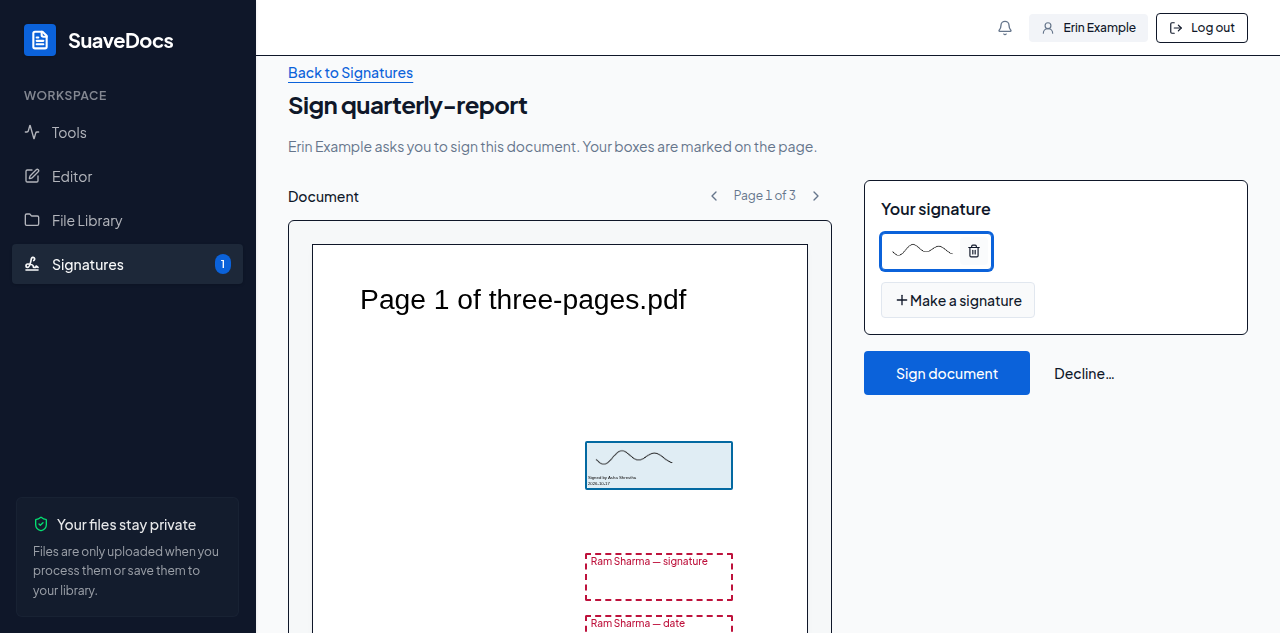 Figure: signing a document you were sent.
What you'll see when it's done: "You signed <title>. <sender> has been told." When you are signing a request you sent yourself, it says "You signed <title>." Under it, a line says which certificate your signature was made with — "Signed with: SuaveDocs certificate", "Signed with: your own certificate (<name>)" or "Signed with: the organisation certificate (<name>)".
To decline: select Decline…, type why under "Why are you declining?" and select Decline. "You declined to sign <title>. <sender> has been told." (on your own request: "You declined to sign <title>. The request is closed.") The request ends; the sender can send a new one. A decline needs a reason: "Tell the sender why you're declining."
Opened before your turn, the page says "It isn't your turn to sign yet. You'll be told when it is."; after you signed, "You've signed this document."; when everyone has signed, "Everyone has signed. The signed document is in Files, under Shared with me." (for the person who sent it: "Everyone has signed. The signed document is in Files, under Mine."); and when the request was cancelled, declined or expired, it says that.
SuaveDocs shows what happened — for example "The timestamp server didn't answer. Try again, or ask an administrator to check Administration → Signing." — and everything you chose stays as it was, so you can select Sign document again. If someone changed the request while you had it open — a reminder going out, say — SuaveDocs signs the latest version without asking, as long as your boxes are where they were; if your boxes moved, it says "Someone else changed this request. Reload to see the latest." and shows them where they are now. If the page itself can't be loaded, it says "This couldn't be loaded." with Try again. After "That certificate isn't available any more. Choose another.", More options opens with SuaveDocs certificate chosen again: choose the certificate you want, then sign. When SuaveDocs' certificate is the only one left to choose, More options isn't there; a line says "Your next signature uses the SuaveDocs certificate." instead. If the list of certificates can't be loaded, a line says "Your certificates couldn't be loaded." with Try again; SuaveDocs' certificate still signs.