Merge PDF
Combine multiple PDFs into one file.
To combine PDFs into one file:
- Open Merge PDF from the tools list.
- Drop your first PDF.
- A message above the pages reads "Add the other PDFs you want to combine — they join this one in order, and you can drag pages to reorder." Click Add files (or From library) to bring in the rest.
- Drag pages in the page list into the order you want.
- Click Export.
What you'll see when it's done: every PDF you added shows together as one document, in the order they'll be combined, as soon as you add them — before you export anything. With nothing else turned on, the Export button reads Download PDF (Save PDF on the desktop app); once it finishes, the file is listed with its own Download button.
If something goes wrong
Combining pages doesn't need the online engine, so there's nothing specific to this step — errors only appear if you also turn on another step (see The editor for those sentences).
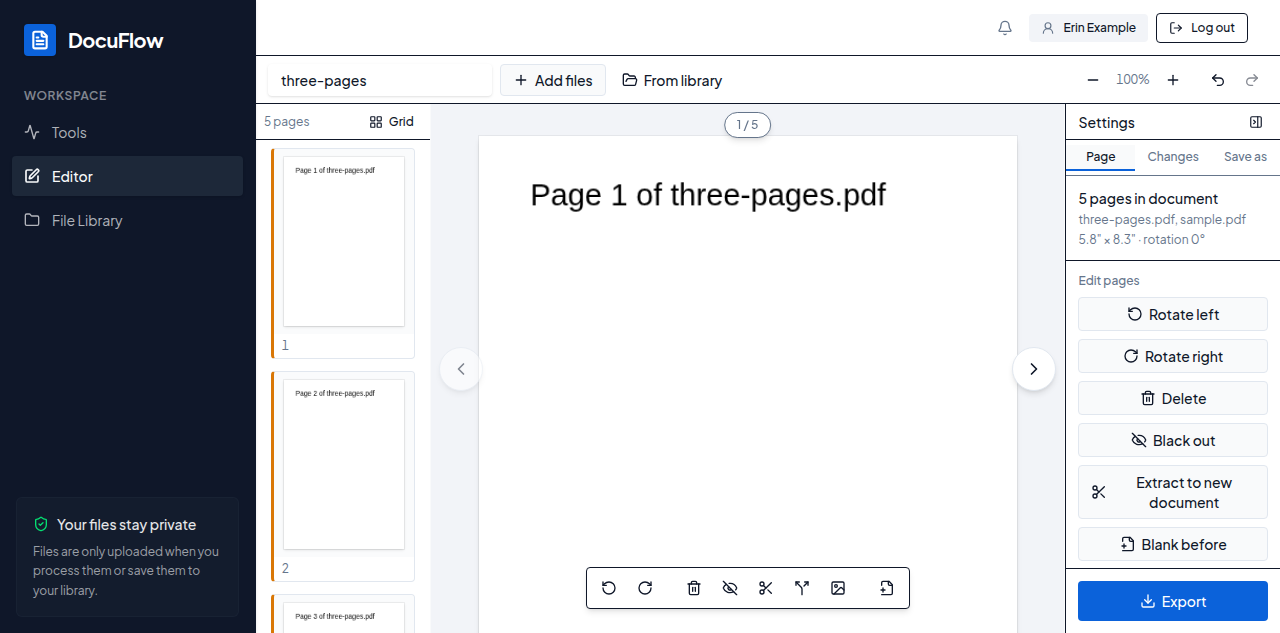 Figure: pages from both files, already combined into one document, before anything is exported.