Protect with a password
Adds a password to a PDF, so anyone opening it has to type it first.
To protect a PDF:
- Drop your PDF.
- Type a Password — "Anyone opening the PDF will need this password." As you type, a strength note appears: "Too short — at least 4 characters", "Short — easy to guess", "Fair — longer is safer", or "Long — hard to guess".
- Optionally, under "More options", set a Permissions password — "A second password for changing or removing the protection."
- Select Protect PDF (the button reads Protect 3 PDFs with several files).
The preview above the options always shows "Anyone opening this PDF will need the password"; if the file is already protected, it also shows "This PDF is already encrypted — the new password replaces its protection".
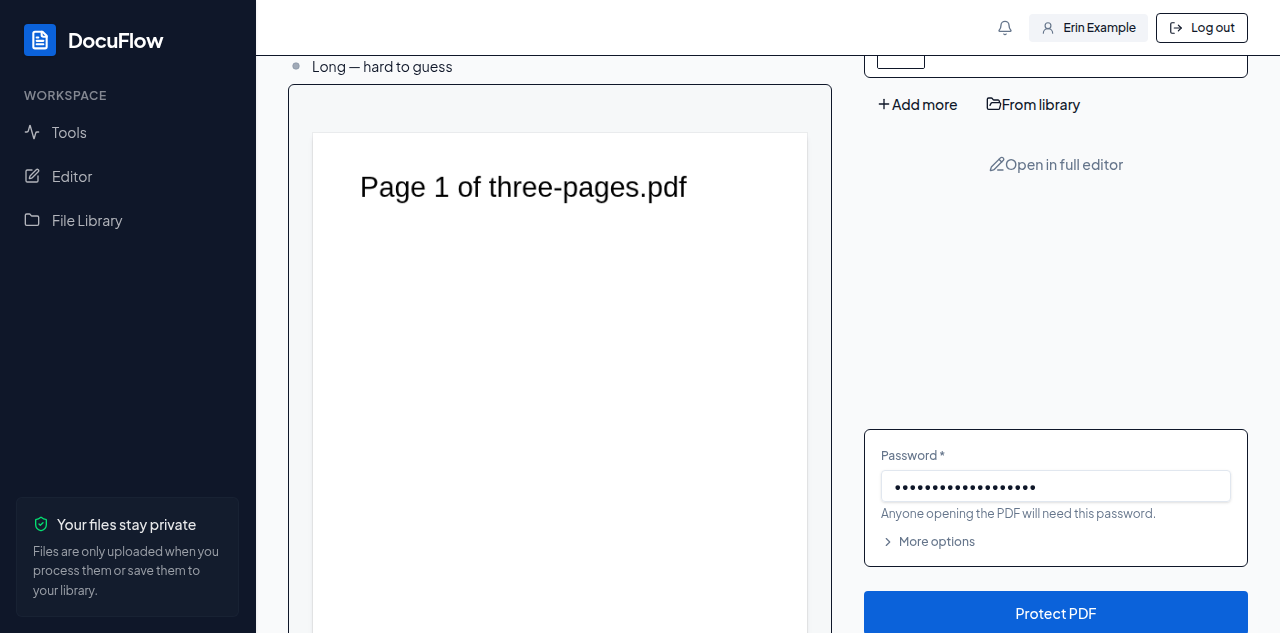 Figure: typing a password, with the strength note updating as you type.
What you'll see when it's done: a Done card with the protected file, ready to download, save to your library, open in the editor, or start over.
If something goes wrong
A failed file shows a plain reason with Try again beside it, and Details for the raw message underneath.