Remove background
Erases an image's background — plain backgrounds behind logos and charts as well as photo backgrounds.
To remove an image's background:
- Open Remove background and add your picture. It runs at once — there is nothing else to press. While it runs you'll see "Removing background…".
- DocuFlow picks the way that suits the picture, and the panel above it says which: "Background: Flat colour (auto)" for a logo, chart or drawing on one plain colour, or "Background: Photo (auto)" for a photo.
- The removed parts show as a grey-and-white checkerboard. That pattern is only on screen — it is never part of your file.
- Select Original to see the picture as it was, and Result to see it with the background removed.
- For a plain background, move Tolerance ("Higher removes more shades close to the background colour.") to remove more or fewer shades. The picture updates as you move it.
- To change how the background is found, choose under Background type: Auto ("DocuFlow picks the best way for this picture."), Flat colour ("For logos, charts and graphics on one plain colour.") or Photo (AI) ("For photos of people, animals and things.").
- Not happy with it? Select Undo — one Undo brings the whole background back, however often you changed the type or the Tolerance.
- When you're ready, open the Output tab and select Download image (Save image on desktop). PNG, the starting choice, keeps the transparency, and so does WebP. If you choose JPG, you'll see "JPG has no transparency, so the background becomes white." and the removed background is saved as white.
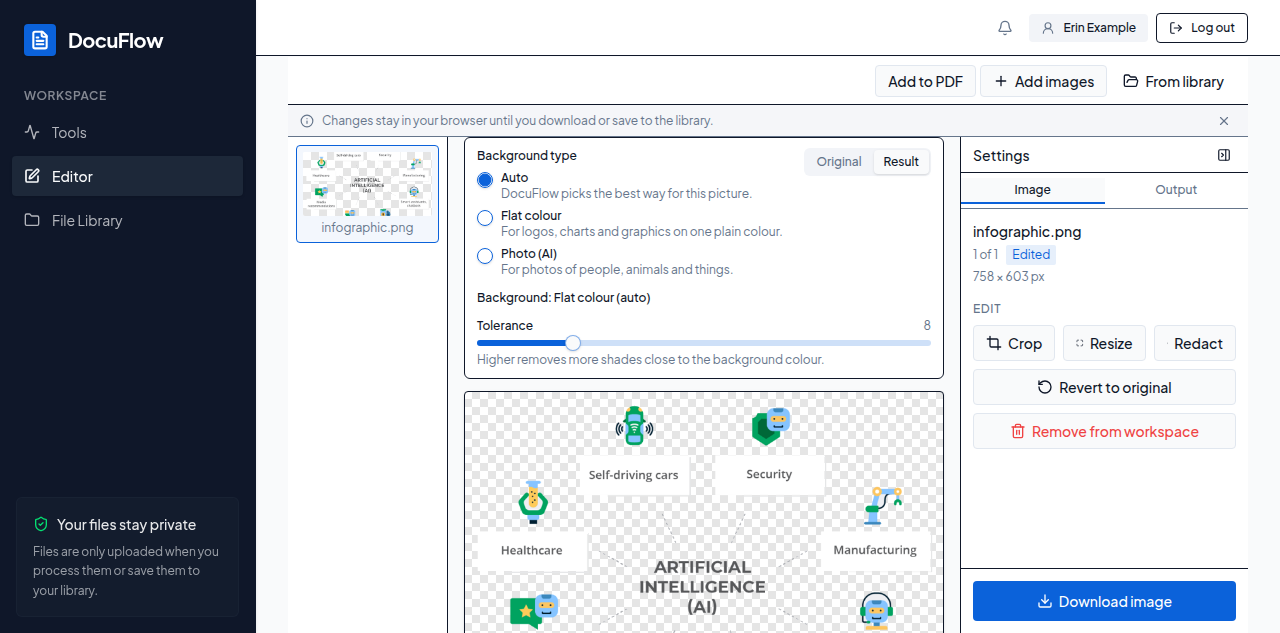 Figure: a chart's plain background removed; the checkerboard shows what is now transparent.
Flat colour only removes the background that touches the edges of the picture: the same colour inside a drawing — the middle of an "O", or a gap inside an icon — stays. Photo (AI) downloads its model (about 88 MB) the first time it is used; after that it comes from your browser.
What you'll see when it's done: the picture with its background shown as a checkerboard, "Background: Flat colour (auto)" or "Background: Photo (auto)" in the panel, and Download image (Save image on desktop) on the Output tab.
If something goes wrong
- "Photo (AI) needs an internet connection the first time, to download its model. Connect and try again, or choose Flat colour." — the picture stays as it was and the choice goes back to the one before.
- "Nothing matched the background colour. Try a higher Tolerance, or Photo (AI)." — the picture has no plain background at its edges at this Tolerance.
- "The background could not be removed." — anything else; try again, or try the other type.