Rotate image
Rotates and/or flips an image.
To rotate or flip an image:
- Open Rotate image and add your picture.
- Under Turn, choose Don't turn, 90° right, 180° or 90° left (the tool starts at 90° right).
- Under Flip, choose No flip, Left ↔ right or Top ↔ bottom — the flip is applied after the turn.
- Select Rotate image.
The preview turns your picture on screen exactly as it will be saved, with a caption giving the size before and after — for example "120 × 90 px → 90 × 120 px". Before you add a picture, the preview says "Add an image".
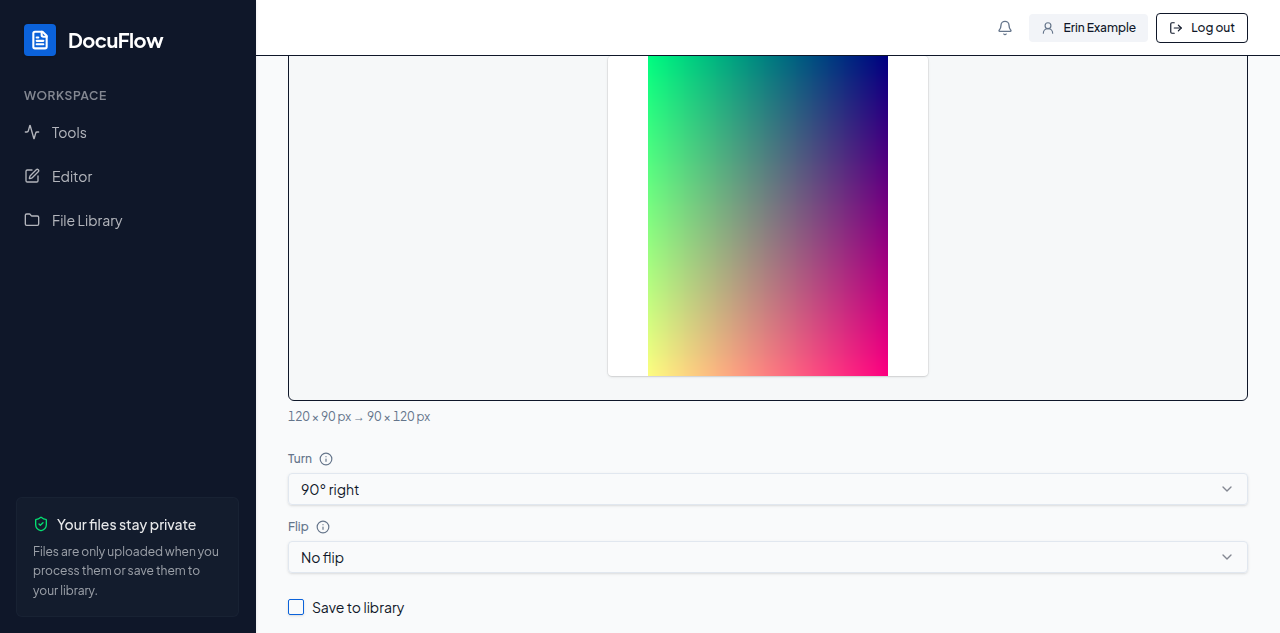 Figure: the picture, already turned, before Rotate image is run.
What you'll see when it's done: the rotated picture, ready to download.
If something goes wrong
A failed run shows its reason with Try again.