Nepali typing
Lets you type Nepali with an ordinary English keyboard — as it sounds, or with the Nepali keyboard layout — and turns text typed in the old Preeti font into Unicode. It runs entirely on your device: nothing you type is sent anywhere, and nothing is saved.
To type in Nepali:
- Open Nepali typing (under Nepal). It opens on the Type Nepali tab.
- Under How do you want to type?, choose As it sounds. (English turns Nepali typing off on this page.)
- Click in Your text and type
namaste. नमस्ते appears while you type; the letters you typed and other spellings show under the line. - Press Space to keep the word. For another spelling, press Tab until it shows, then Space — or press its number, such as 2.
- Select Copy, or Download .txt to save the text as
nepali-text.txt.
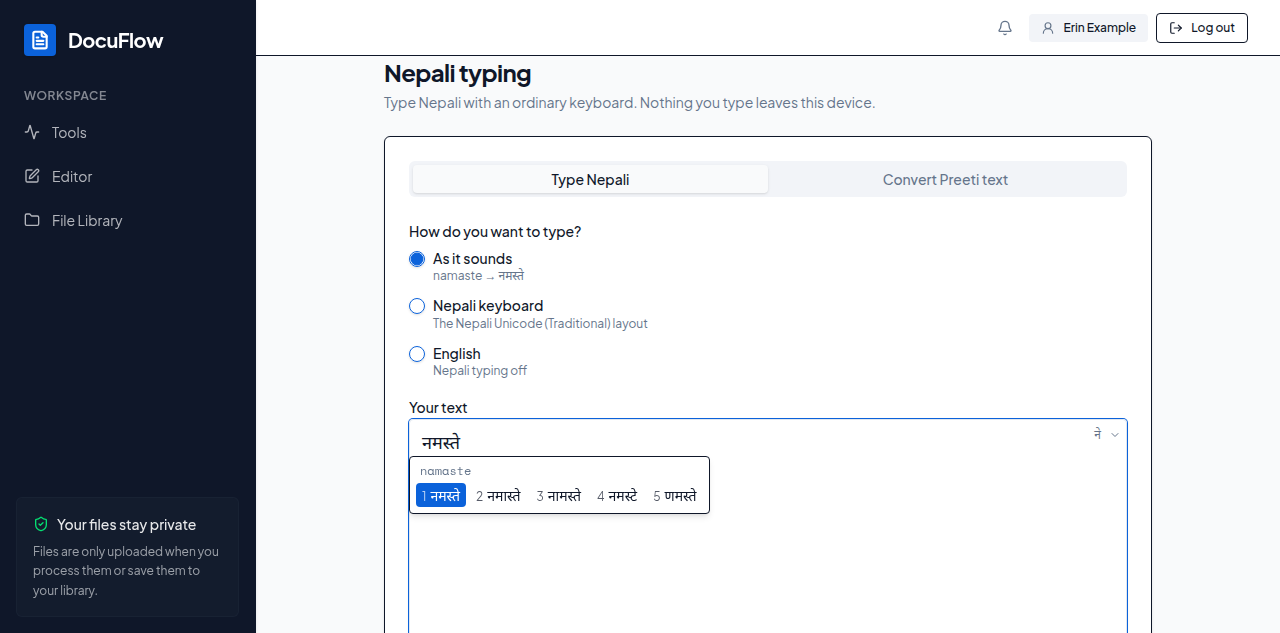 Figure: typing as it sounds — the Nepali word appears while you type, with other spellings to choose from.
| Type | To get |
|---|---|
| aa | ा — nepaal → नेपाल |
| ii | ी |
| T | ट |
| N | ण |
\ | ् |
| | । |
| M | ं |
| an a between letters | keeps them apart — sarkar → सर्कर, sarakaar → सरकार |
Show typing guide lists every letter.
Nepali keyboard: choose Nepali keyboard to type with the Nepali Unicode (Traditional) layout. Its letter keys are where Preeti typists expect them; the number keys type Nepali digits (१, २, ३), and Shift gives other letters. Type letters in the order you say them: कि is s, then l. On the keyboard picture, no join (m) stops two letters joining and join (Shift+\) joins them. For - ( ) / : and other signs, switch to English for a moment: select ने at the end of the box (or press Ctrl+Space), then EN to come back. Show typing guide draws the keyboard; Show Shift keys shows its Shift layer.
Convert Preeti text
- Select the Convert Preeti text tab.
- Paste the text into Preeti text. Here it looks like jumbled English letters — that is normal.
- The Unicode text appears in Nepali (Unicode) text as you paste or type.
- Select Copy Nepali text, or Download .txt to save it as
converted-nepali.txt.
Only Preeti is supported. Text from other old fonts, such as Kantipur, may come out wrong.
What you'll see when it's done: "Copied" after Copy or Copy Nepali text. After Download .txt: "nepali-text.txt was downloaded. Look in your browser's downloads." (on the desktop app: "Saved nepali-text.txt where you chose."; if you close the save dialog: "Cancelled. The file was not saved."). Clear empties the box and shows "Text cleared", with Undo to bring it back. Your text isn't saved — copy or download it before you leave the page.
- A word comes out wrong: press Tab or a number to choose another spelling, or type the long vowel (aa, ii, uu) or the capital letter (T, D, N, Sh) yourself. Esc puts back the English letters.
- A name typed with a capital R starts with ऋ (
Ramgives ऋअम): press Tab or a number to choose the spelling with र, such as राम, or type a small r. - The spelling you want isn't in the list: the list shows at most five spellings, so in a long word it may not be there. Type the word more exactly instead — for example
g\ygives ग्य, wheregygives ज्ञ. - "The text couldn't be copied": select the text and press Ctrl+C. "The file couldn't be saved": the message under it says why; try Download .txt again.
- When a phone's keyboard or another input method does the typing: "Your keyboard's own input method is doing the typing here — to type in Nepali, switch that keyboard to Nepali."
- Converted text looks wrong: it was probably typed in another old font, such as Kantipur, which isn't supported.
Typing in Nepali in any field
The text boxes of letters have the same Nepali typing.
- At the end of the box is a switch: EN means you are typing English, ने means Nepali. Select it to switch.
- The ▾ beside it chooses how: As it sounds — namaste → नमस्ते, Nepali keyboard (Unicode) or English.
- Ctrl+Space switches too: English → as it sounds → Nepali keyboard → English. It is the way to switch from the keyboard: Tab goes straight on to the next box.
- The boxes that have it: the text boxes of a letter's form (Letter templates and Sifarish letters), Search templates, and in the builder the Title in Nepali, a field's Label in Nepali, Hint under the field (Nepali) and Choices, one per line, the Value of a "Show only if…" rule, and the letter's paragraphs, subject, letterhead lines and signature lines. English boxes, numbers and dates don't have it.
- Your choice is remembered on this computer, for every box and the Nepali typing page.
- For one English word while Nepali is on, type it and press Esc.
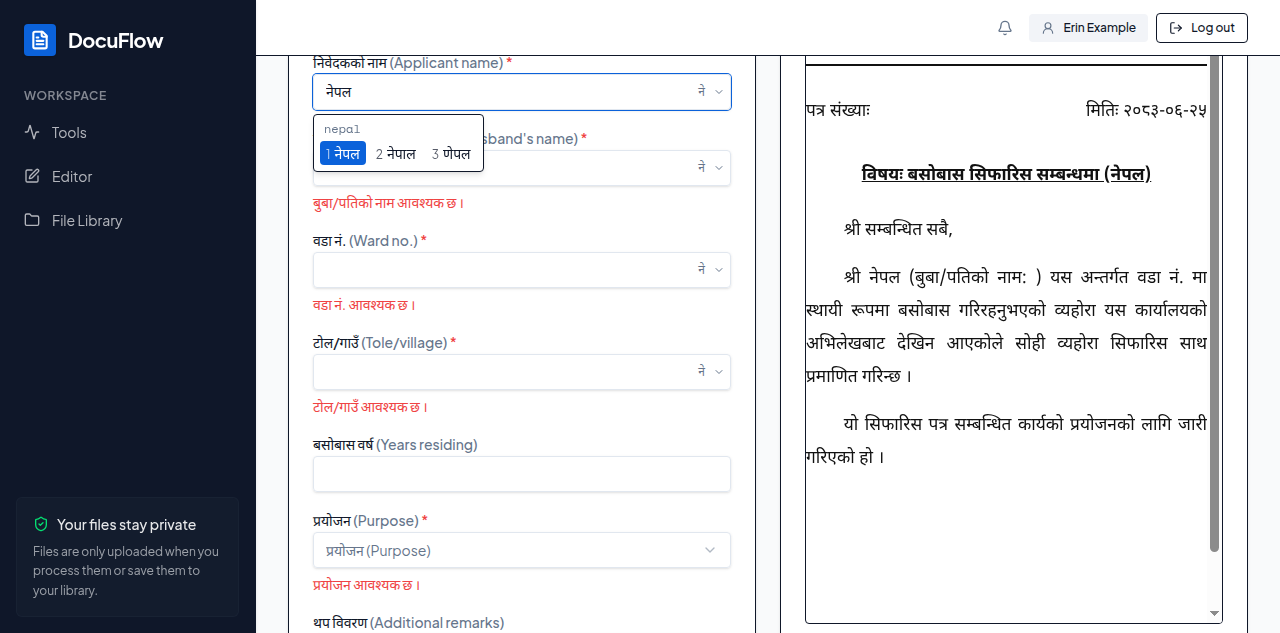 Figure: the ने switch on a letter field — the letter's preview shows the Nepali as you type.