E-mail templates
A template can also be an e-mail: the same fields and "Show only if…" rules, written as a message with a Subject line. From a filled-in e-mail template you send the e-mail to a few people straight from SuaveDocs, and you see it as it will arrive before anything leaves.
To make an e-mail template:
- On the Letter templates page, select New template. The builder asks "What are you making?" — select An e-mail ("A message with a Subject line, sent from SuaveDocs to a few people at a time."). Under the title it then says "This is an e-mail template."; this can't be changed later.
- Type the title, and add the details the e-mail needs on the Fields tab, as for a letter.
- Open the E-mail tab. Write the Subject line, one line; Insert field and typing {{ work in it too. Write the Message: paragraphs, each with Show only if… if you want it, as in a letter. Fill in the Sign-off: Name, Post and Office — "The lines under the message. Leave a line empty to leave it out."
- Watch Preview: the e-mail as it arrives ("Filled with the sample values below."): "
<your name>via SuaveDocs", the Subject line with the sample values, then the message. Switch on Show plain-text version to see what people get whose e-mail program shows no formatting. - Select Save template. Until you change something, the line under the title says "Give the template a title and write the message, then save it."; the first save's box says "Your template is saved in this workspace, ready to send e-mails with.", and once saved: "Your template is ready to send e-mails with."
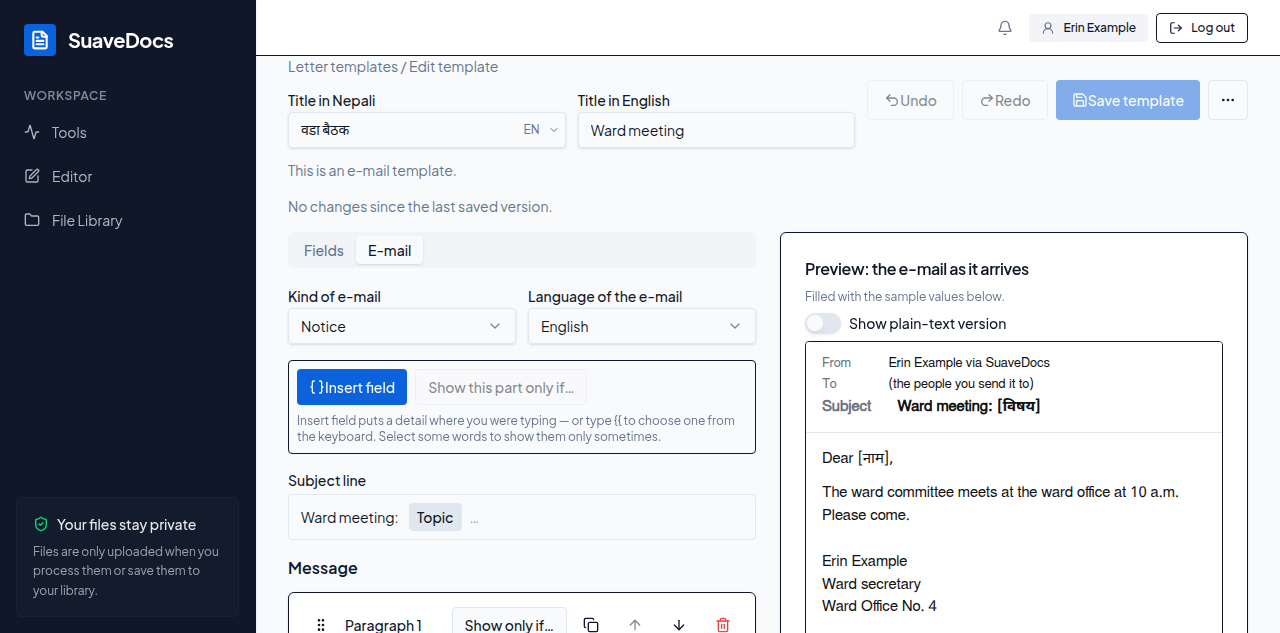 Figure: an e-mail template in the builder — the E-mail tab beside the e-mail as it will arrive.
An e-mail template has no letterhead, no seal and no letter number or date. Drafts, Undo, Redo, typing {{ for a field, Duplicate and dragging paragraphs work as in a letter.
To send an e-mail from a template:
- On the Letter templates page, select the template (its card shows an envelope).
- Fill in the form under Fill in the e-mail.
- Under Send to, type each address and press Enter, or separate them with a comma or a space — a list copied from your e-mail program works too ("Type an e-mail address, then press Enter. Separate several with a comma or a space."). To pick a colleague, select Add someone from your workspace and find them (Cancel closes the search). An address with a typo is marked at once, for example "“ana@exmple” isn't an e-mail address. Check it and try again."; select × on an address to take it off.
- Check the preview ("What the people you send it to will see."), then select Send e-mail.
- SuaveDocs asks "Send this e-mail to 3 people?", lists every address and says who it comes from: "It is sent from Ram Sharma via SuaveDocs. Replies come to ram@office.gov.np." Select Send e-mail, or Go back to change something. If your sign-in has no e-mail address, the box says "It is sent from
<your name>via SuaveDocs. Your sign-in has no e-mail address, so replies can't reach you."
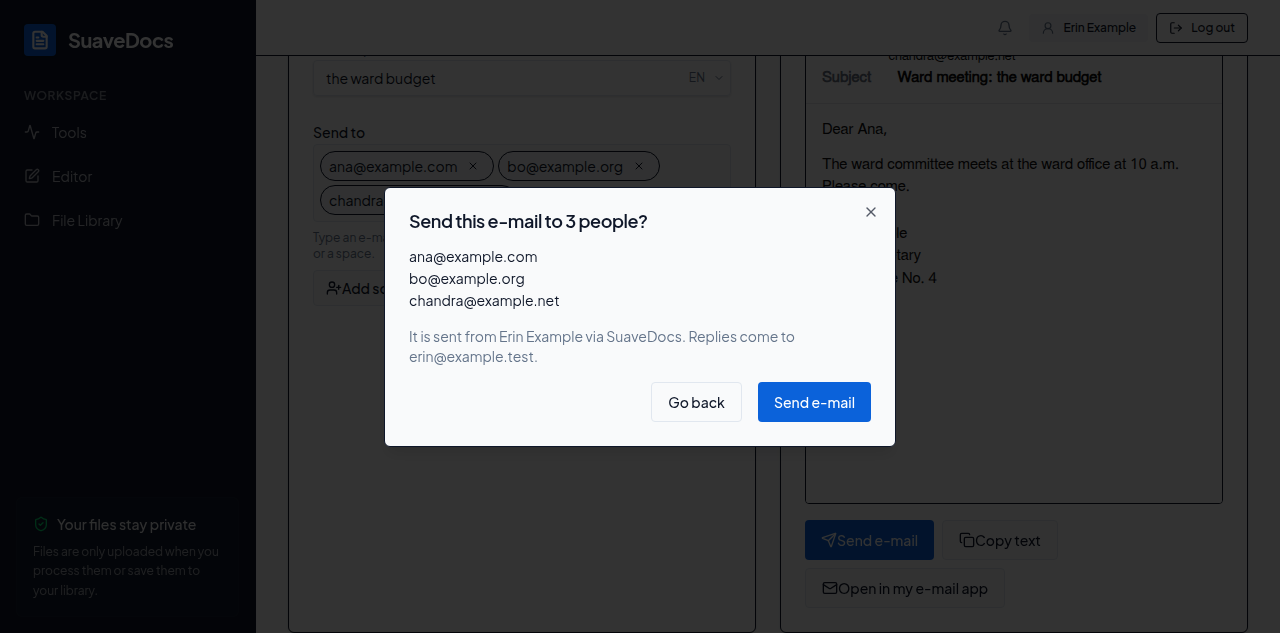 Figure: before anything leaves, SuaveDocs names everyone it goes to and who it comes from.
What you'll see when it's done: "Sent to 3 people.", with a line for each address that turns from "Sending…" to "Sent" — or "Not sent", with the reason. Once every address has its answer, the heading says "Sent to 3 people." when all of them were sent, "Sent to 2 of 3 people." when some weren't, or "Not sent." when none was. Select Send another to start again with an empty form, or Back to templates. If it takes longer than ten minutes: "Still sending — check Sent e-mails later."
Sent e-mails (on the Letter templates page) lists the e-mails you sent from a template: the Subject line, the template, who each went to, and "Sent", "Sending…", "Not sent to <n> of <total>" or "Not sent". SuaveDocs keeps who an e-mail went to, its Subject line and its template — never the message itself.
Without sending: Copy text puts the Subject line and the message on your clipboard ("Copied."), and, in the browser, Open in my e-mail app starts a new e-mail in your own e-mail program with the addresses, the Subject line and the message filled in. Both work offline too. A long message may be cut short there: "Your e-mail app may cut a long message short. If it does, use Copy text instead." The desktop app has Copy text only; it doesn't show Open in my e-mail app.
Limits: up to 20 people in one e-mail, and 100 e-mails a day for each person. The e-mail comes from SuaveDocs' own address with your name on it; replies go to your own address.
- "E-mail isn't set up for your workspace yet. Ask an administrator. You can still copy the text." — Send e-mail isn't shown; use Copy text or, in the browser, Open in my e-mail app.
- "This template changed while you were filling it in. Reload to see the new version; your answers are kept." — select Reload, check the preview, and send again. If the new version can't be fetched: "The new version couldn't be loaded. Select Reload to try again in a moment."
- "You can send to at most 20 people at once." / "You've reached today's limit of 100 e-mails. Try again tomorrow."
- "You can't send e-mails in this workspace." — ask an administrator.
- "Sending needs an internet connection. Connect and try again." / "E-mail can't be sent right now. Try again in a few minutes." — try again later; nothing was sent.
- "The sign-off is too long. Use at most three short lines." — shorten the Sign-off in the builder. "The message is too long. Keep it under 20,000 characters." — shorten the message. "Write something in the message before sending." — the message and sign-off are both empty.
- "Add at least one person to send it to." / "Fill in the required fields to send the e-mail." / "The Subject line is empty. Fill in the details it uses." — the Subject line is made only of details left empty.
- "This SuaveDocs server can't send e-mail yet. Ask an administrator to update it. You can still copy the text." — and in the builder, "E-mail templates need a newer SuaveDocs server. Ask an administrator to update it."
- If an e-mail can't be delivered to someone, the bell tells you which address and why — for example "it wasn't sent within a day". In Sent e-mails that address shows "Not sent".
- In the builder, "Fix these before saving:" may say "Give the e-mail a Subject line.", "An e-mail template has no letterhead." (select Remove the letterhead) or "An e-mail sign-off has no seal." (select Take the seal off).